Batch & Serial Numbers on Parts receipting and issue
To use serial numbers on the parts
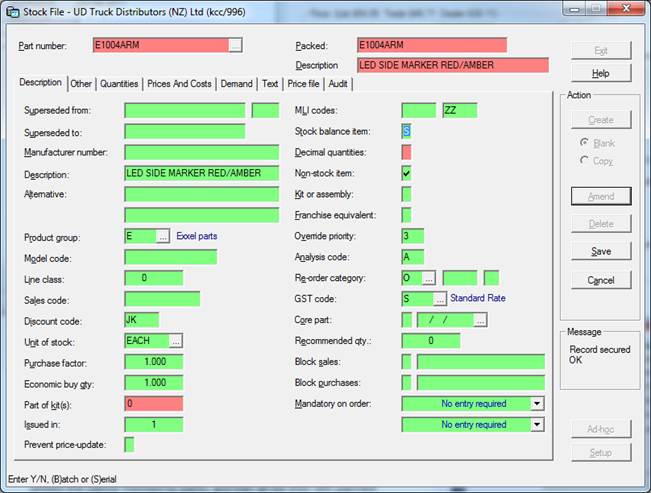
In stock maintenance – change stock balance item field to S
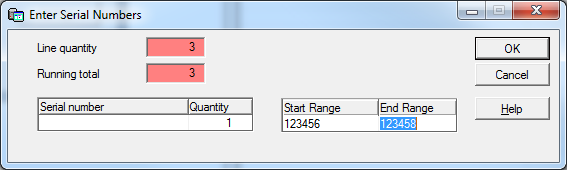
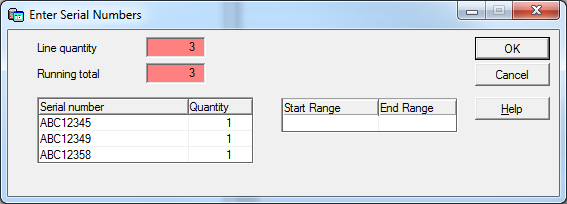
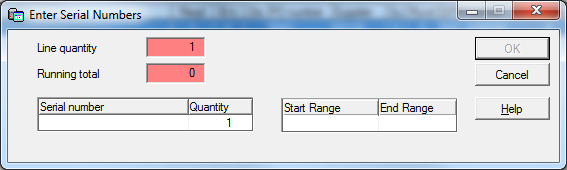
When you receive the item into stock you will be prompted for the serial number/s.
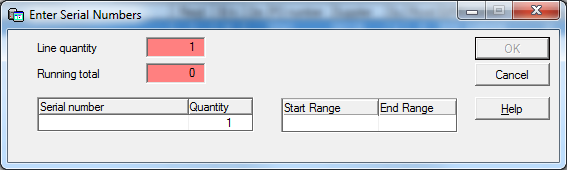
If just one ordered – or the numbers are not sequential – you can enter them manually in the serial number field.
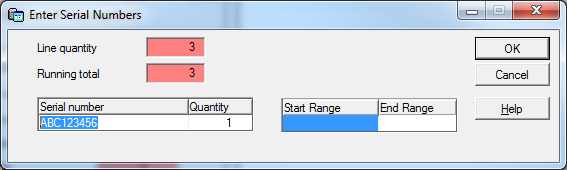
If they are sequentially numbered you can enter the first number in the start range box and it will work out the end range
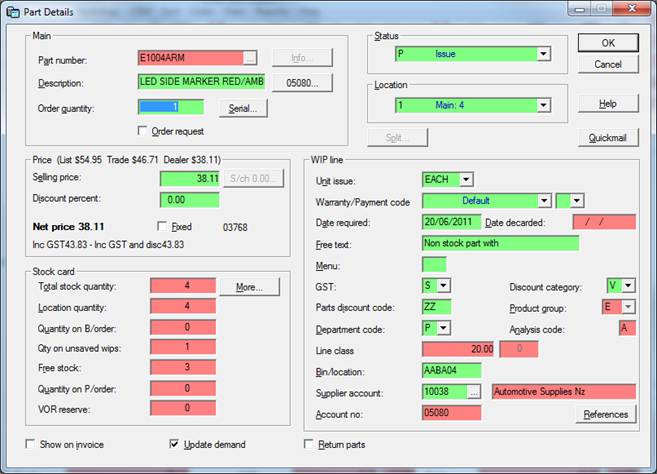
When you are selling the parts you must select the serial number of the one you are selling (next to order quantity or selecting the quantity field in red on the main screen)
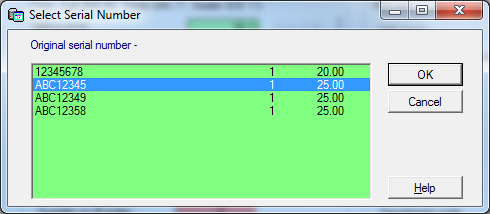
This will display a box for you to select the serial number of the one you are selling
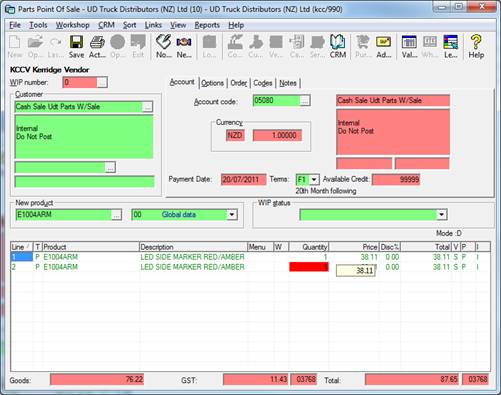
If you enter a quantity of more than 1 – it will add them to the WIP as separate parts – so you can select the correct serial number for each line
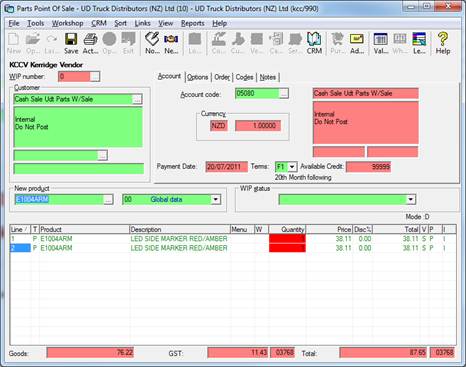
The quantity field remains red until the serial number has been selected.
If the part is incoming from ICT, there will be a prompt to enter a Serial Number when the status is changed from “R” to “P”.
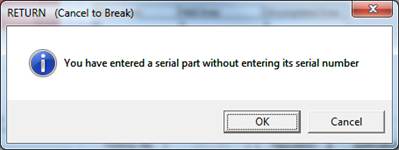
If you try to requisition without selecting the serial number you will be prompted with a message
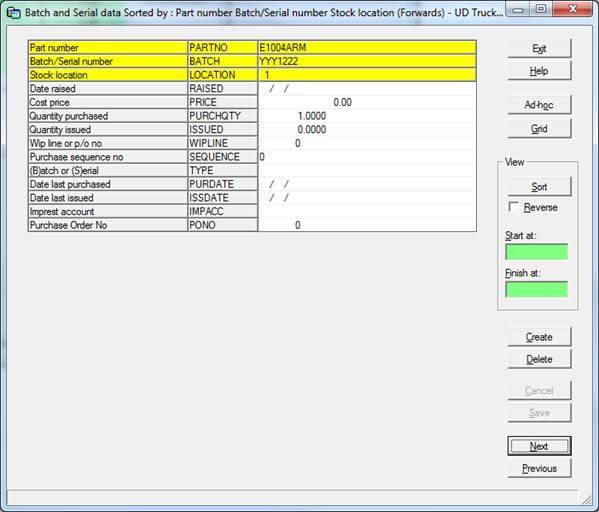
If you wish to start using this and you already have parts in stock – you will need to add the serial numbers in manually.
This is done through Stock Management / Miscellaneous Options / Batch and Serial Data
The minimum data required is Part Number / Serial Number / Stock Location / Quantity Purchased / Batch or Serial (B or S).