
This article is being updated regularly when new features / question solutions are added.
SmartCheck Pro eWOF is Auxo’s electronic Warrant of Fitness inspection solution for New Zealand workshops, designed to replace traditional paper WoF checksheets with a secure digital process.
It is well suited to both smaller workshop-only businesses and larger Autoline Rev8 dealerships. For Autoline Rev8 workshops, SmartCheck Pro includes full integration with Autoline, allowing WoF inspections to fit naturally into existing workshop processes while reducing manual handling and duplication.
This article provides a starting point for setting up and using SmartCheck Pro eWOF. The detailed steps are covered in the linked articles below, including activation, configuration, staff setup, starting inspections, completing rechecks, and managing completed inspection records.
Full NZTA VIC Online integration is now available - this is an additional $1 per WOF check ($1.50 total)
SmartCheck Pro can be used on any device with a web browser, whilst it is designed for a PC / Laptop or tablet it does work on a mobile phone, just requires more scrolling than with a tablet or PC / Laptop.
https://go.auxosoftware.com/smartcheckpro
Some of the benefits of Smart Check Pro over the existing Systime EWOF solution.
- Smart Check Pro - does not consume an Autoline License while doing the WOF check
- Smart Check Pro - you can pause and save during a WOF check. The Check is not lost, requiring you to start again.
- Smart Check Pro - not limited to just Passenger Vehicle, Trailer and Motorcycle also available
- In the near future this will have full integration with VIC for submitting the WOF online. (this will incur additional charges)
Some of the benefits of Smart Check Pro over Paper WOF's
- Ease of retrieval for customer rechecks.
- No messy paper forms.
- No hard-to-read handwriting
- Faster inspections.
- Ability to Print or Email to the customer
ssy paper forms No messy paper forms
Smartcheck Pro support
Any problems or questions about Smart Check Pro itself - first point of call is ask Axel the question (Orange Icon bottom right of screen)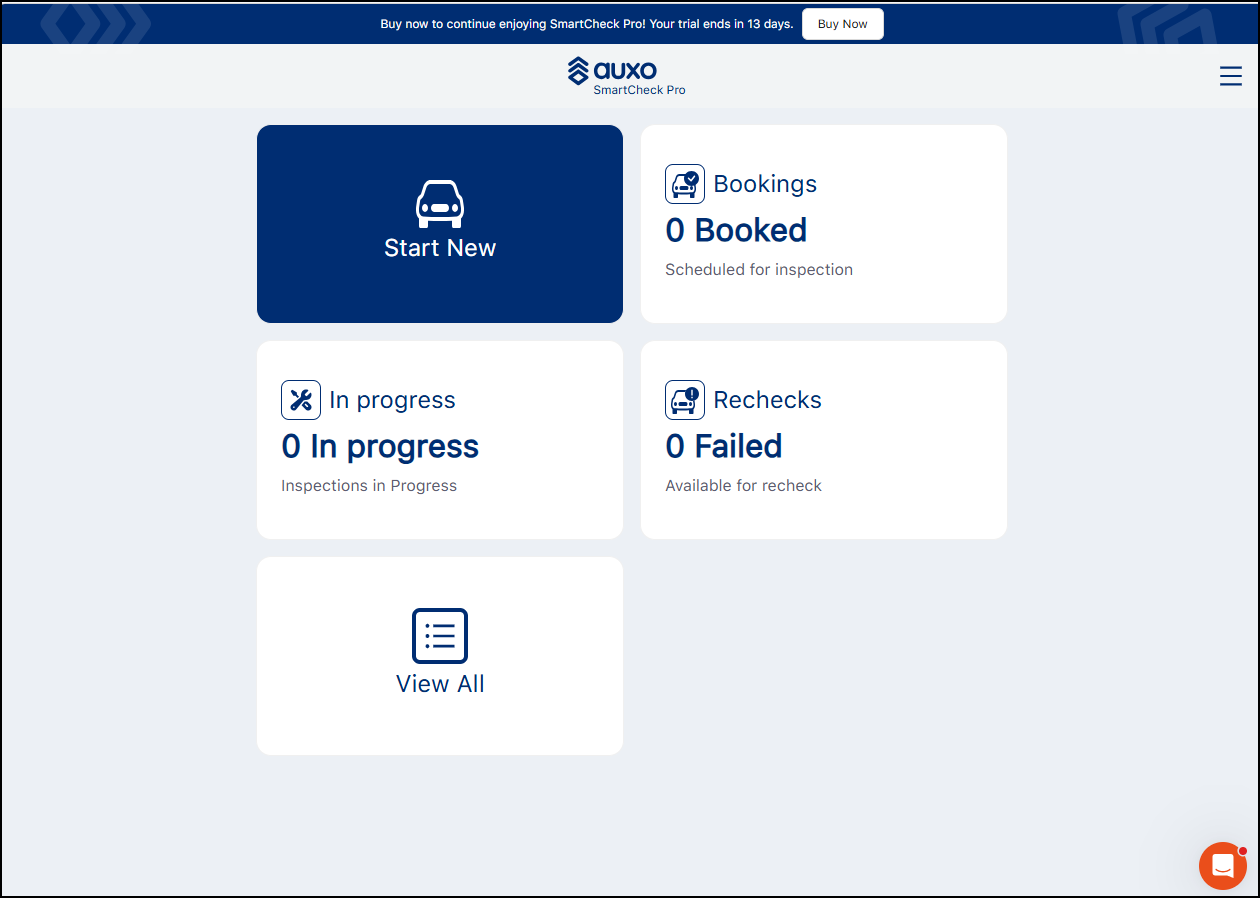
Axel will get additional support automatically if it is unable to answer the question. (From the Smart Check Pro team - different to Systime support) Axel will log a ticket with that team if required.
You can also access Axel without logging into Smart Check Pro - https://learn.auxosoftware.com/en/
Just be sure to mention Smart Check Pro when asking the question this way - as Axel also supports other Auxo Products.
If struggling with Axel you can email support@auxosoftware.com
Any issues with the integration between Autoline and Smart Check pro please email systimesupport@systime.co.nz in the normal manner.
Current Pricing 01/06/2026
$10 per POS company / NZTA Inspecting Organisation ID / MS Number per month base fee. (After using coupon discount code)
50c per standalone WOF check
$1.50 per VIC integrated WOF Check
Sign up Procedure.
Register on
https://auxosoftware.com/smartcheckpro-trial/
Confirm your email address
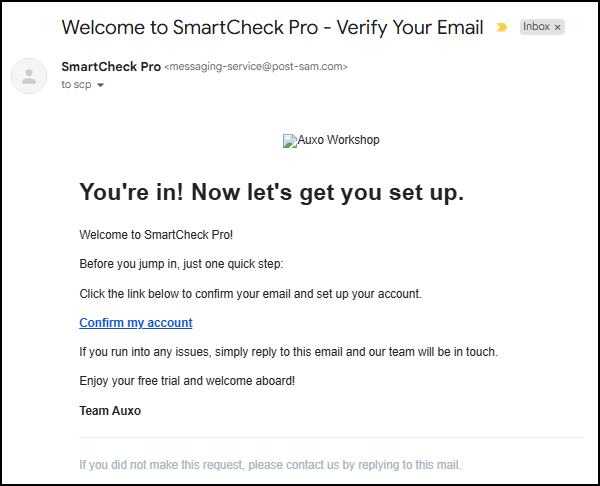
Logging into Smart Check Pro https://smartcheckpro.com/
Complete the configuration for your dealership / branch within Smart Check Pro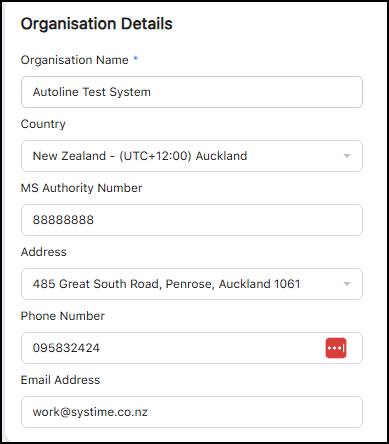
The MS Authority Number field - should include MS and your number - eg MS12345 (Not just the Number)
Setup your staff configuration.
NOTE - The trial has a limit of 5 users
When you add a staff member they will get an email link to login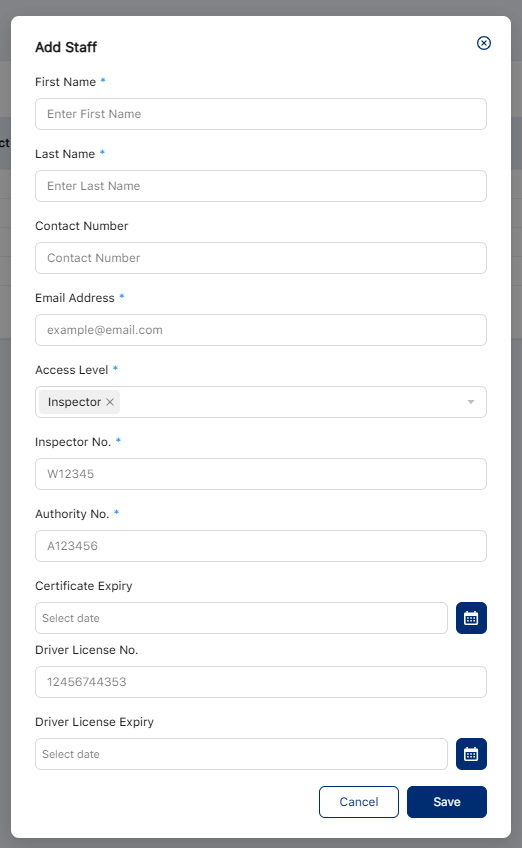
Inspector No. is the private ID an inspector uses to create and submit inspections. It is hidden from view on the staff list.
Authority No. is NZTA's confirmation that the inspector's ID has been issued. This is the number that appears as "Inspector #" on the printed or emailed checksheet. This is NOT the site MS##### ID
If assigning the Inspector access level, enter:
Authority No., confirming the inspector's ID was issued by NZTA. This is what appears on the checksheet.
Inspector No., the private ID the inspector uses to create and submit inspections.
⚠️ Important: If an inspector's private ID was previously entered where Authority No. now sits, move it into Inspector No. and replace Authority No. with the number that should appear on the checksheet.
Overtype / Rename the Technicians that appear automatically when you start the trial, with real inspectors details. Eg Spanners McGee & Sparky Robinson
If you would like the integration with Autoline turned on for your trial - please email systimesupport@systime.co.nz and advise the POS company you would like integration activated on and the email address that you used for the trial sign-up.
Trial complete / Moving to Paid Subscription
When your trial is complete you can move to the paid subscription as per below.
Before clicking Buy Now (after you have done your free trial)
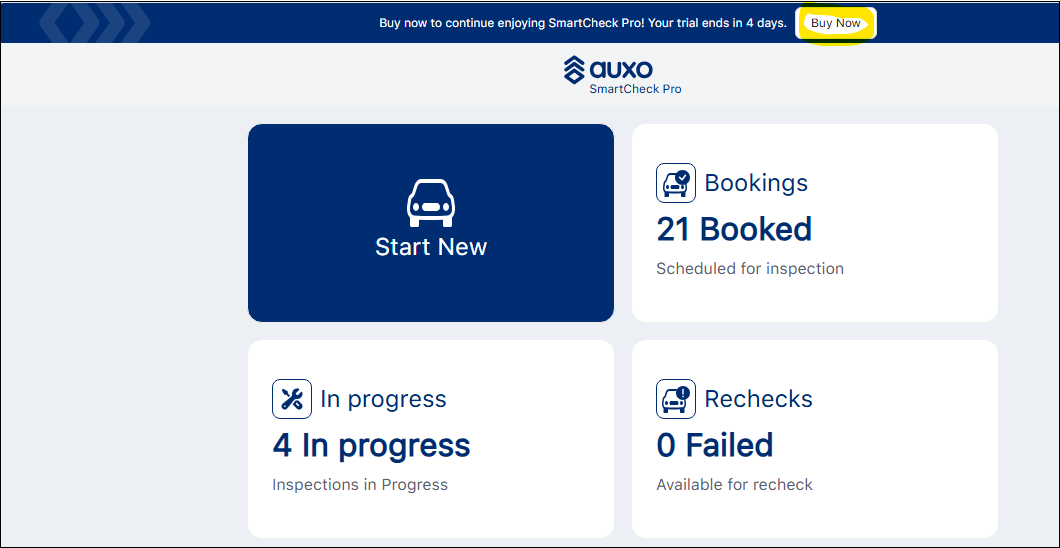
Email the support desk systimesupport@systime.co.nz
To get a coupon code to reduce the ongoing Monthly fee from $29 to $10

IMPORTANT
Businesses with multiple Point of Sale Companies / NZTA Inspecting Organisation ID / MS Number
You will need to register a separate account/subscription for each.
You are not able to use the same email address when registering the additional POS companies.
You must use a different email address.
If you would like the billing to go to one email for multiple POS companies email systimesupport@systime.co.nz and we can organise this to be updated in the billing database.
For business with more than one POS company you can also have one "parent account" where the individual tenants/subscriptions do not manage their own payment methods – they are all channelled to the payment method configured against the ‘parent’ (therefore only one credit card to maintain, and the individual sites/tenants cannot see or edit the payment method). Email systimesupport@systime.co.nz to have this setup after registering.
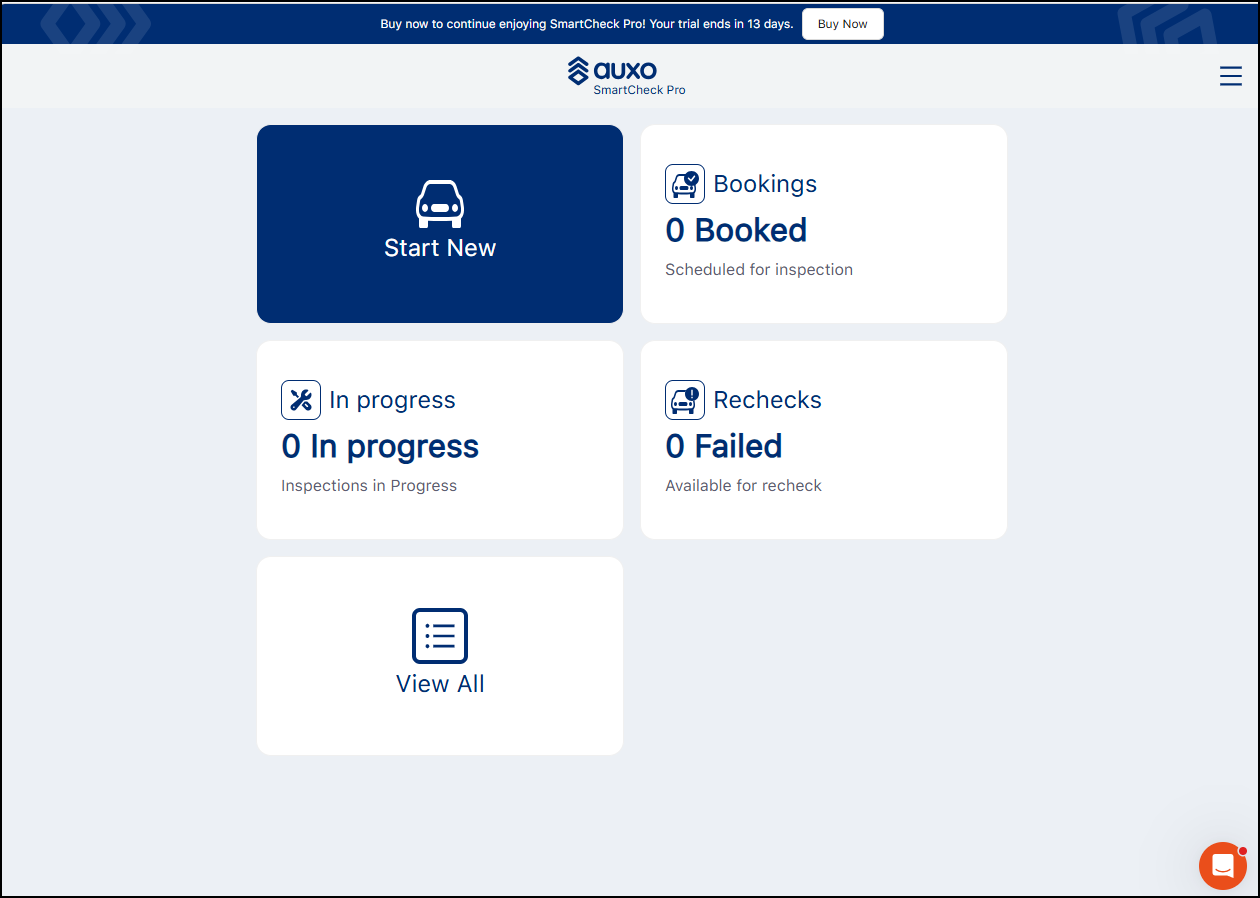
NOTE
You can signup for the SmartCheck Pro E-WOF trial in advance of having the Autoline integration activated.
This way you can access the dashboard and manually load a vehicle in to do a eWOF check.
This enables you to see how the SmartCheck System works on your devices to determine if you think this will be a good fit for your business.
NOTE - The trial has a limit of 5 users
Payment/Billing - The SmartCheck Pro system is billed separately from Autoline, from our Parent Company Auxo. The payment method is credit card. There is currently no option or future plans, to have monthly billing. This is a prepay service.
Details :SmartCheck Pro: Settings – Subscription & Top-Ups | Auxo Help Center
https://learn.auxosoftware.com/en/articles/12706712-smartcheck-pro-overview-ewof
https://learn.auxosoftware.com/en/articles/12721625-smartcheck-pro-standalone-sign-up-and-subscribe-for-non-auxo-workshop-users
https://learn.auxosoftware.com/en/articles/12707571-smartcheck-pro-settings-configuration
https://learn.auxosoftware.com/en/articles/12758954-smartcheck-pro-managing-staff
https://learn.auxosoftware.com/en/articles/14697983-smartcheck-pro-accessing-smartcheck-pro
https://learn.auxosoftware.com/en/articles/12707530-smartcheck-pro-using-the-inspection-list
https://learn.auxosoftware.com/en/articles/12707565-smartcheck-pro-print-email-results
https://learn.auxosoftware.com/en/articles/12721282-smartcheck-pro-inspection-sections-checks-full-reference
Autoline Usage
Within Autoline when a WOF labour line is added and is at the status - M- Memo , B - Booked, or E - Extra the WIP/Job is pushed to Smart Check to create the WOF check (when the WIP is saved)
The SmartCheck WOF # can be viewed on the WOF tab in POS
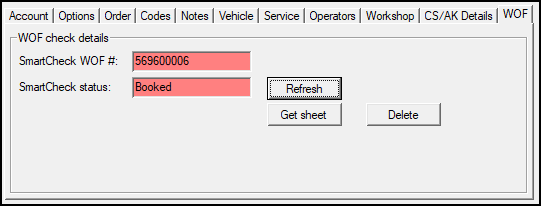
You can click Refresh on this screen to get the current SmartCheck status of this WOF. This does not query SmartCheck Pro automatically.
Checksheet will open the Smartcheck generated WOF Check Sheet (after completing the WOF check)
Delete will remove the checksheet (if not completed) from the SmartCheck Dashboard.
When this is used the word Deleted will appear in the SmartCheck WOF # field
Send WOF this is to manually send this WIP to the dashboard.
This is useful for some dealers where they don't add a WOF line until costing the job.
This must also be used if you inadvertently use the Delete button and wish to resend to the SmartCheck Dashboard.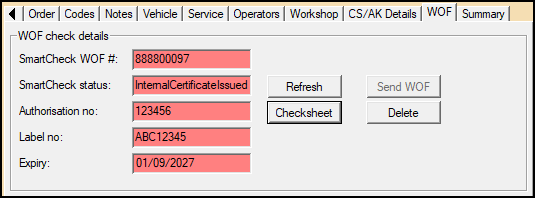
Alternatively, to using Checksheet (above) you can reprint from the Smart Check Pro Dashboard & see the full log of all checks done.
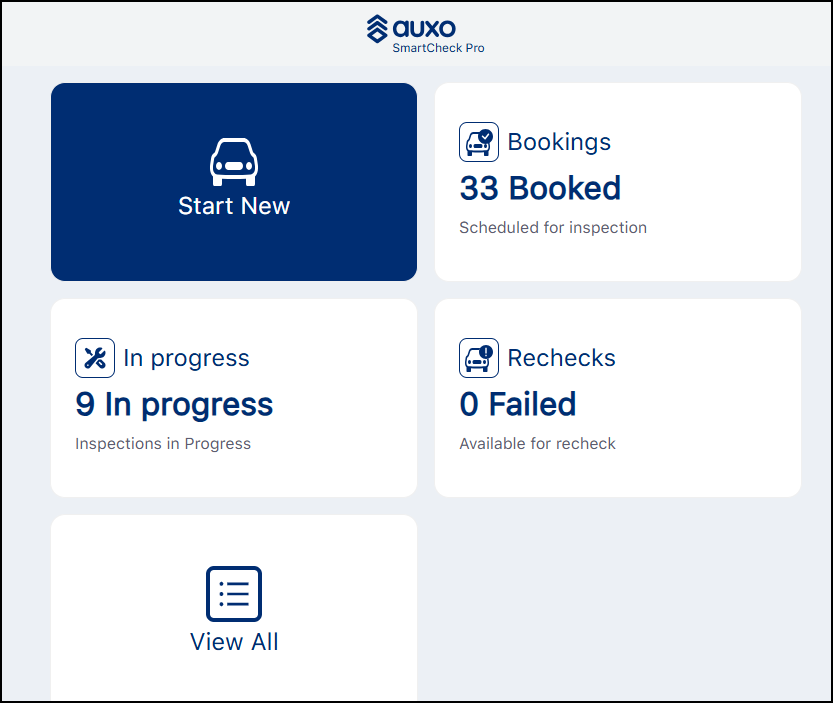
Trailer / Motorcycle WOF
Start the WOF as per normal - and select the type of WOF inspection you are performing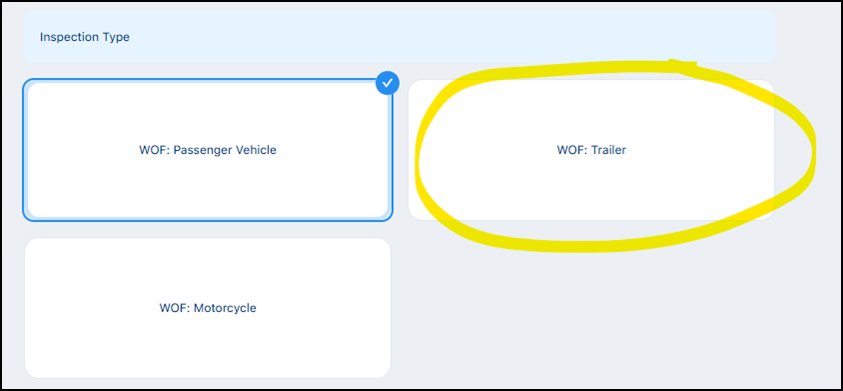
View All - Here you can search for a customer by Rego, VIN, last 7 of VIN, Customer Name, WIP Number
Customer Name - sent to SmartCheck Pro
The default customer name that comes across is from the linked CRM Customer record.
When the WIP has no customer linked eg for an Internal account like VSB.
If the name on the sales ledger account is the same as the name on the WIP - Then the dealership name from the POS Depot record will be sent to SmartCheck (instead of Used Vehicle Preparation in the below case)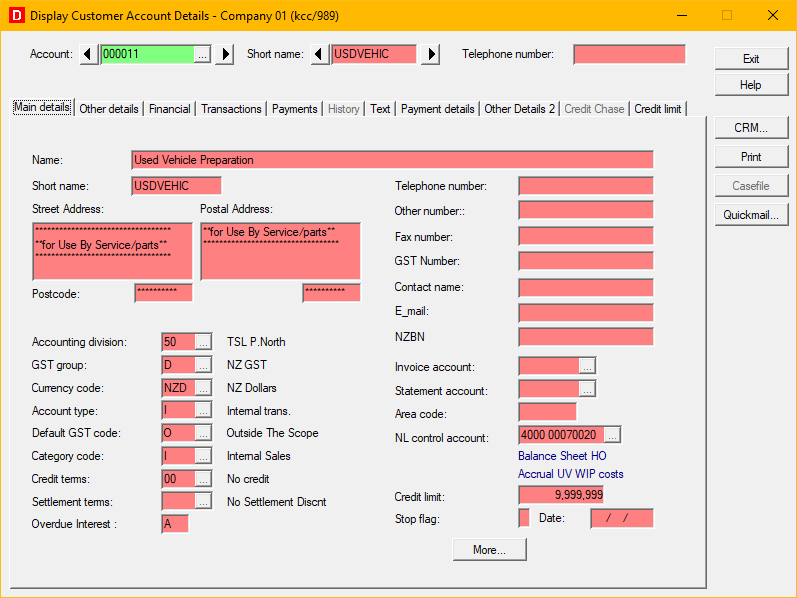
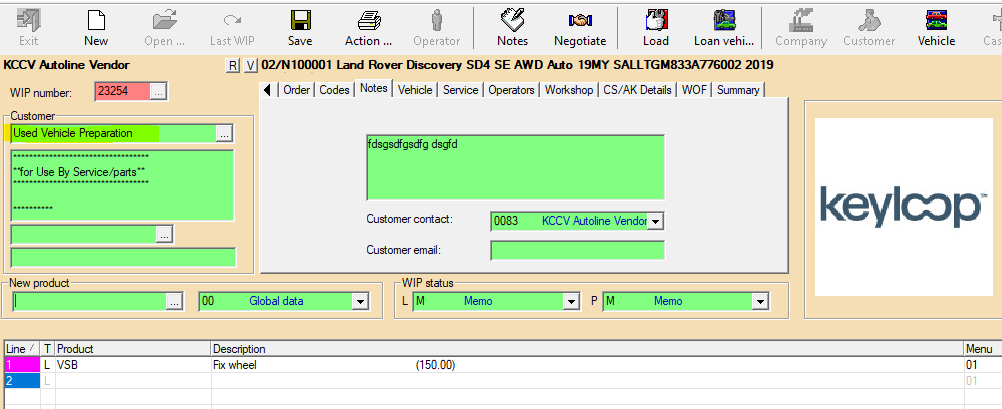
If this name is edited in the WIP (When there is no customer linked to the WIP) then this name will be sent.
VIC Online Integration
Contact systimesupport@systime.co.nz to have this enabled on your account.
Once this has been enabled you need to activate it within Smart Check Pro (This box will not be visible until enabled in the backend) You will be required to complete all the other necessary fields on the system configuration page to enable.
Settings / System Configuration.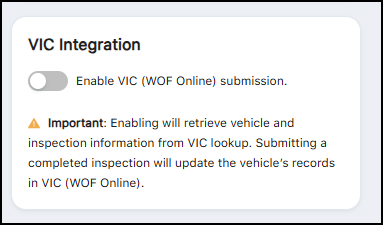
Autoline Setup (Systime Tasks)
Parameters
CS / NZ / Point of sale / EWOF / EWOF Parameters.
2 tabs
first tab - Main ensure Enabled is ticked and the WOF labour rate is filled in.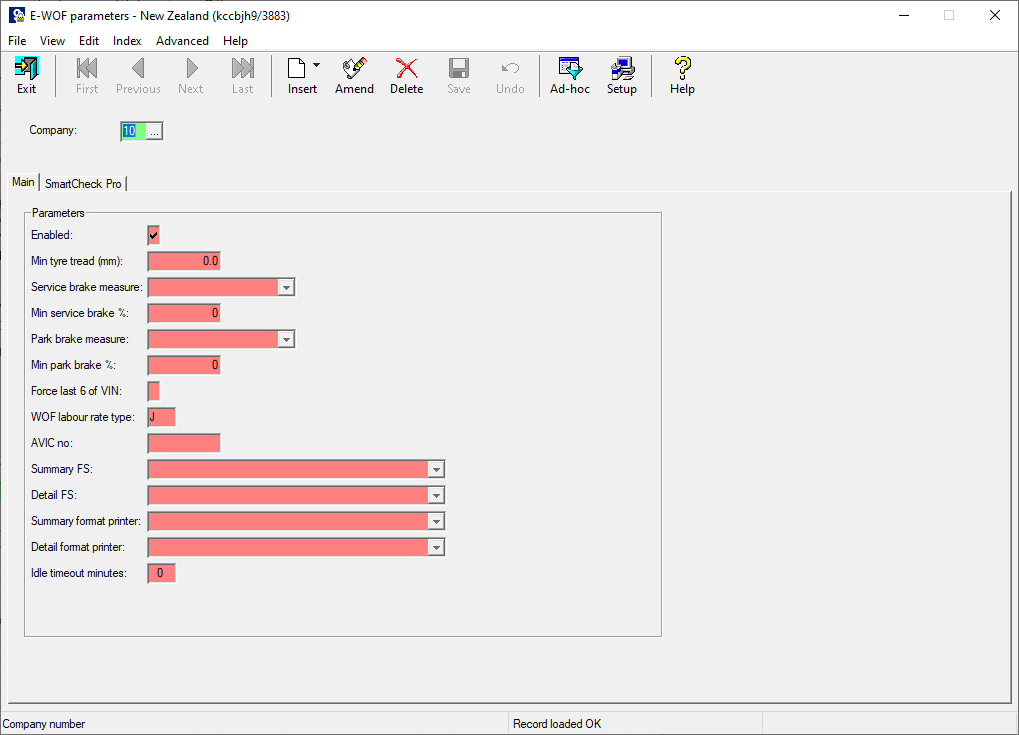
SmartCheck Pro Tab (to be completed by Systime)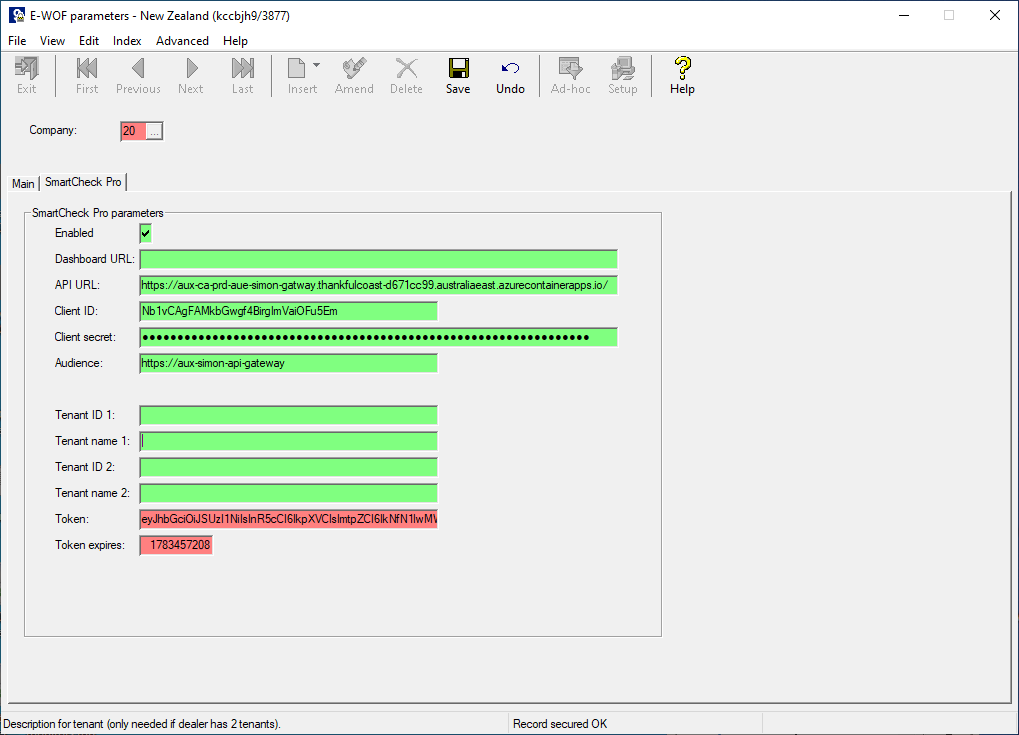
The top 4 fields plus the Dealership Tenant ID must be entered (Dashboard URL leave blank)
The Tenant ID can be obtained from Hubspot. See Brad / Phil / Julian - This is only created automatically after the customer has registered for the trial.
Systime support staff - accessing Axel
Without a login to a live site you can ask Axel directly yourself - https://learn.auxosoftware.com/en/
Systime Staff Refer : ? SmartCheck Pro – Autoline Integration Setup Process - Auxo Workshop - Confluence