Setup & Configuration Guide
1. Overview
This guide provides step-by-step instructions for setting up and configuring [Service online / Autoline].
2. Setup
2.1 Menus & RTS codes
MS > 00 > Standard RTS codes
MS > 00 > Menu pricing
1. Create the RTS codes for service online, i.e. SOLWOF (SOL denotes service online), load skill should be the skill created for SOL in workshop loading, this is to ensure appointment times work correctly when service advisors are not in use.
2.Create the Menu’s and link the previously created RTS code. Menus are required for use with Experieco, this ensures that the correct pricing comes through.
2.2 Workshop Loading
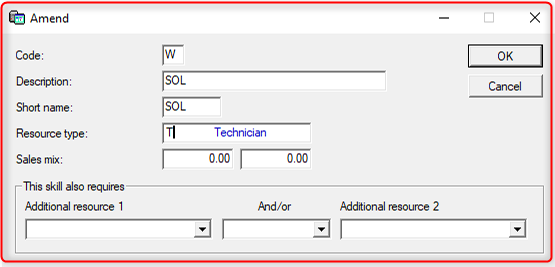
1. Create a skill for service online
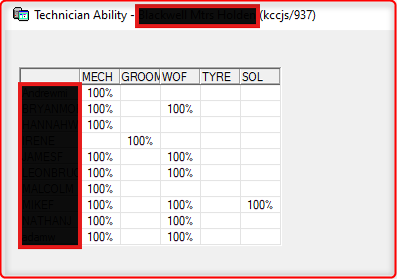
2. In technician ability assign the skill to the technicians to be available to work on SOL jobs
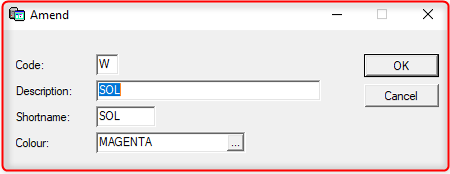
3. Create a team for service online or use existing teams if there is no need for a split.
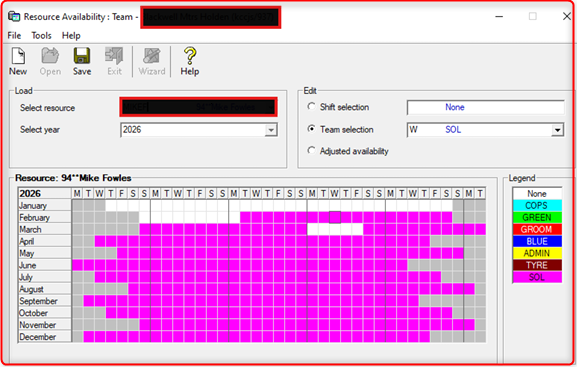
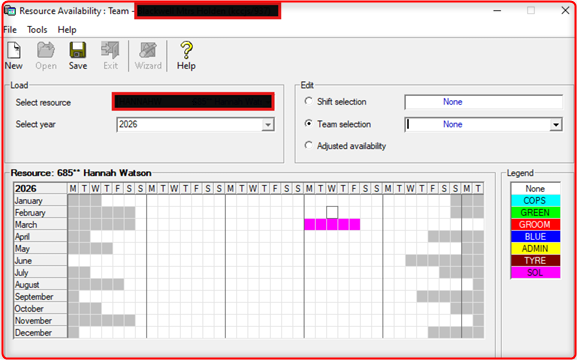
4. Resource availability.
Assign your preferred resource to the newly created SOL team.
If for whatever reason you need to make service online available for another resource for a day, unassign the day for this resource and assign it for the other one as follows:
2.3 Upsel records
Point of Sale > miscellaneous options > Up-sell records
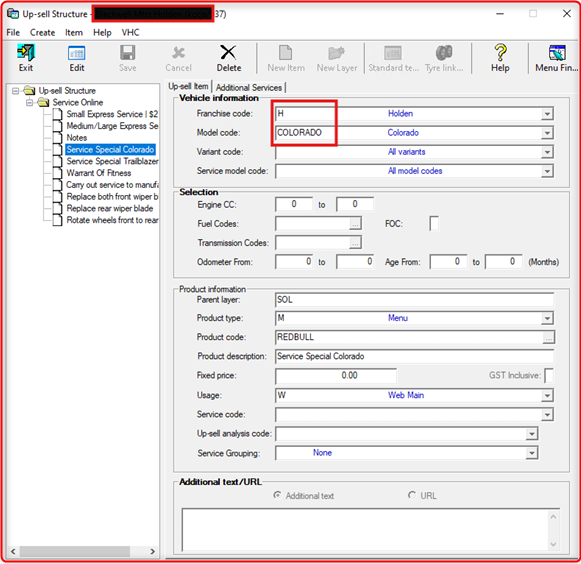
1. Create the upsell records; usage needs to be W for Web Main.
2. If you want a fixed price, it could be set here too, otherwise it will use the price setup in the RTS code linked to the menu.
3. Use Menus in conjunction with Experieco to get correct pricing on the WIP.
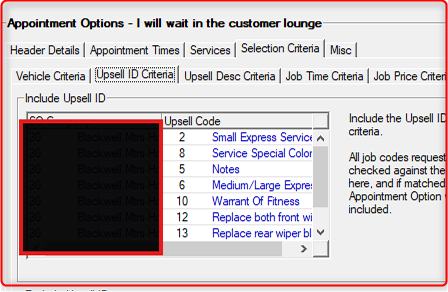
4. If the options are only available for specific models it needs to be set out as below:
2.4 Manufacturer Systems Digital Marketing Parameters
MS > DM > Parameters > Digital Marketing Parameters
1. Create appointment options
2. Select which rooftops (POS co) are applicable for the appointment option.
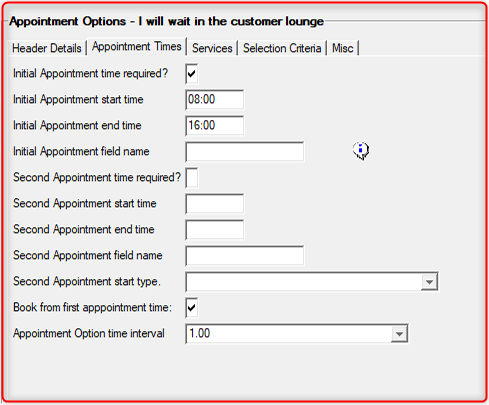
3. Configure appointment times
4. Select services that should be available under the appointment option, exclude longer services under the customer waiting appointment option.