
The Urban Science (eProfit) extract will create a .csv file to be imported into Urban Science/Financial View. This file will contain the Trial Balance from the Nominal Ledger and statistical information relating to Vehicle and Parts stock ageing and hours clocked and sold from Point of Sale and Workshop Loading.
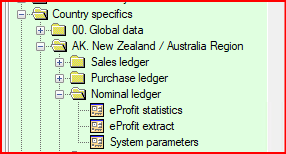
The option is found in Country Specifics – AK. New Zealand/Australia Region – Nominal Ledger
The collection of the Statistics is automated.
To accumulate the statistics for Parts Ageing. Hours Sold. Hours Clocked and Throughputs a program will be run in Timed Operations the last day of the calendar month or the early hours of the following morning
The Vehicle ageing statistics will created as part of the VSB Carry Forward each month. It will be added to the Carry forward process and the statistics will only be written to the file on the succesful completion of the carry forward process.
Extracting the file
When the calendar month end has passed, the VSB carry forward has been done, the other ledgers have been closed and profits agreed the eProfit extract can be run.
On selecting eProfit Extract from the menu the screen below will be displayed.
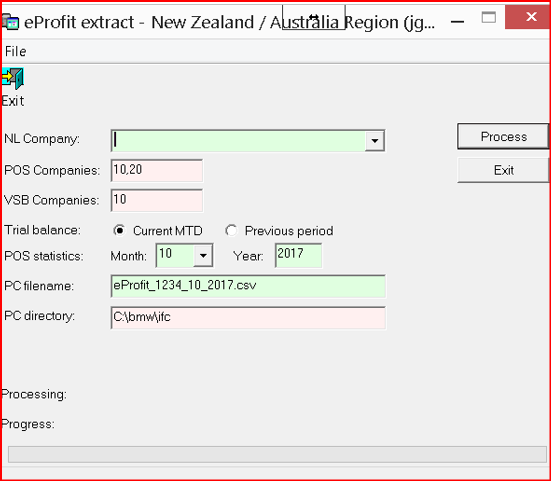
Enter the details as follows
NL Company – the extract will need to be run for each NL company. The POS and VSB companies will be displayed but can not be amended.
Trial Balance – select whether this is to be run for the current month to date (if the NL has not been closed) or a Previous Period
POS Statistics – Enter the calendar month and year to be used in the extract
PC Filename – this will default from the information provided but can be amended
PC Directory – the file will always be saved to the same place. The location is held in the CS AK export parameters
Once the details have been entered click on Process and this will perform the NL trial balance extract by Current Month or Previous Month and data will be accumulated in the .CSV file (eg eProfit_1234_05_2017.csv)
The VSB, POS and WL statistics will be taken from the statistics file (AK.CS.stats) and included at the end of the .csv file.
At the end of the run, the .csv file will be copied to C:\bmw\ifc
Comparison to Existing Reports
If you are using the Technicians Efficiency reports for these figures you will find that the extract differs to the totals in that report.
Clocked Hours
Clocked hours are calculated using the clocking file in the Workshop Loading module and are reported on the date they happen. The Efficiency reports use the date last edited on the labour log file to determine which report they will appear on
Sold Hours
Sold hours are calculated based on the category code on the sales ledger account and are classified as follows
IF SL accts CATEGORY = "A" , "B", "C","D", "E", "F", "G", "M", "O", "P", "R", "S", "T","n","u" then add to Retail
IF SL accts CATEGORY = "I", "N", "U", "V" then add to Internal
IF SL accts CATEGORY = “W” "then add to Warranty
Whereas the Efficiency report uses the salestype for the labour logfile regardless of the sales ledger account.
The Drilldown option on the Efficiency reports can be used to compare the figures.
Throughput
The Througput calculation uses the following in the calculation
Ignore credits, ie only count invoices
Keep a list of all WIPS counted in the time period, so if it is a second invoice for the same WIP, ignore it.
Also search the previous 3 months for invoices with the same WIP number. If one is found (ie counted in a previous month) then ignore it.
Where a wip has more than one type of invoice including an invoice to the customer it will be counted as Retail/Transient.
A customer will be counted as Transient if there has been no Wip raised for them in the previous 450 days.